NFC Tags
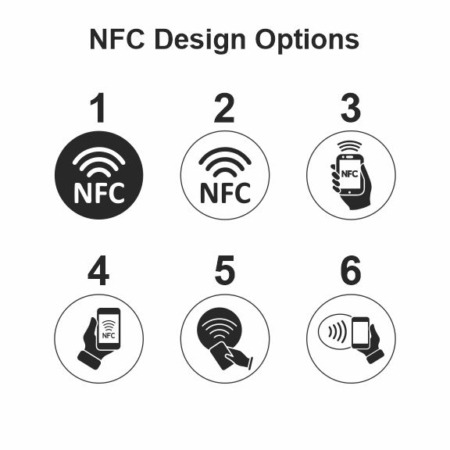
Scannable NFC microchip tags are UV printed for durability, and customizable with your artwork. Attach to nearly any surface, including our metal, plastic or vinyl tags!

Scannable NFC microchip tags are UV printed for durability, and customizable with your artwork. Attach to nearly any surface, including our metal, plastic or vinyl tags!
NFC (Near Field Communication) tags are small, battery-free microchips that store data. When a smartphone or an NFC reader is held against a tag, it transmits a website link, simple text or triggers a specific action.
We can custom print or quick-ship stock NFC tags that will adhere to nearly any surface, including our blank or custom-made metal, plastic and vinyl tags.
Once you get your tags, you can easily program them to link to a website, simple text or other information trigger. A video below shows you how.
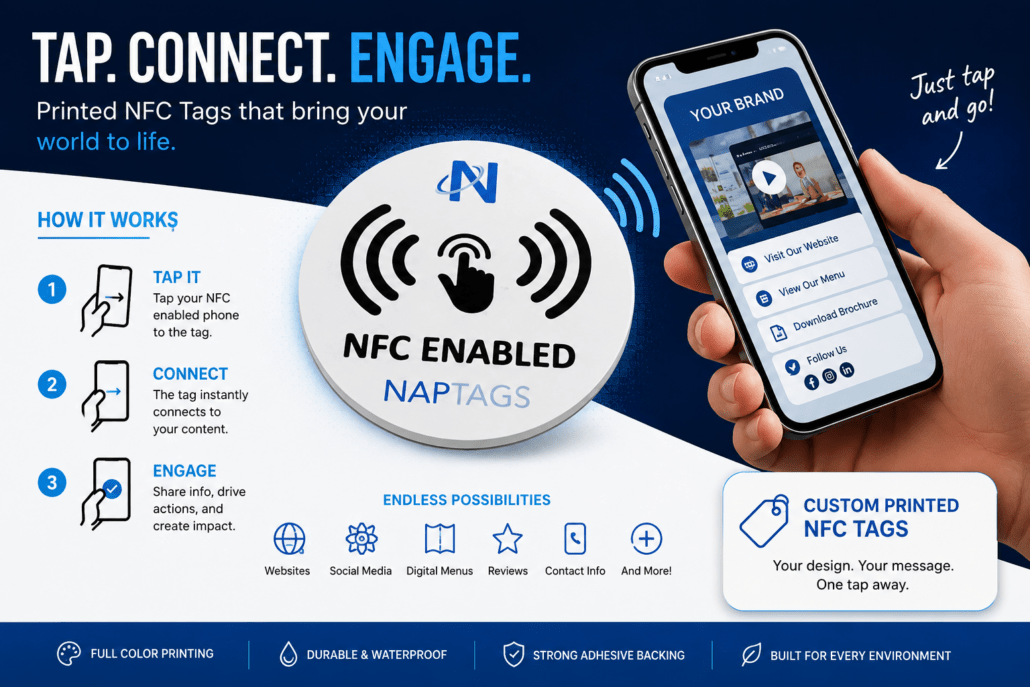
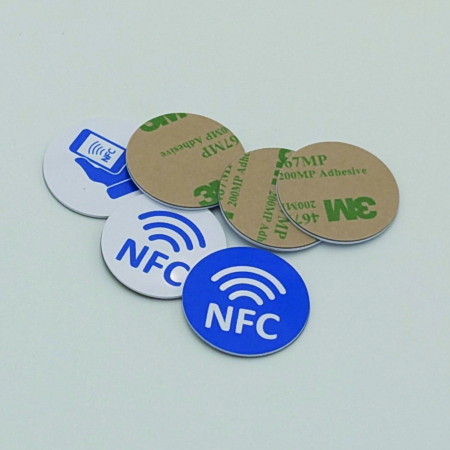
They are made of rigid PVC plastic with a strong 3M adhesive backer, making them weather-resistant and waterproof!
Our premium UV-cured inks are engineered for exceptional durability. Expect 2 to 5 years of vibrant, chip-resistant performance outdoors under direct sunlight. When used indoors or away from UV rays, the print will easily match the 10-year lifespan of the internal NFC chip.
NFC tags can be used for:
Browse the options below, order online or request a quote to get NFC tags manufactured to your specifications.
Choose in-stock NFC tags that are ready to ship fast, or have us custom print your own artwork or text on the front. The strong 3M Adhesive attaches to nearly any smooth surface, including our metal, plastic and vinyl tags!
Need something you don’t see here?
from NapTags
1- What You Need
2- NFC Tools App
3- Add a Record
4- Write to Tag
5- Test
Questions?
We’re happy to help! Contact our customer service team during normal business hours.
See what’s possible and reach out to create the perfect tag for your application!